
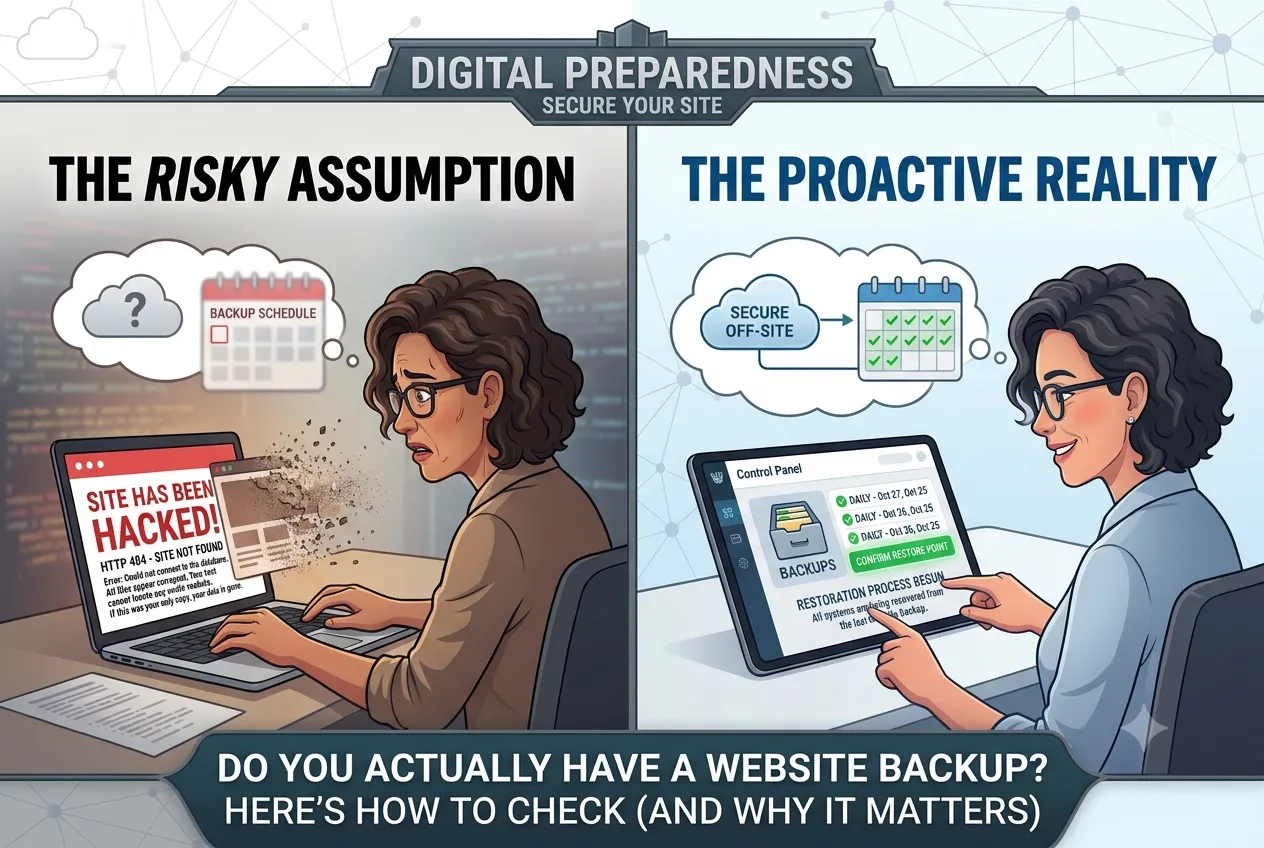
 If your website went down tomorrow, hacked, broken by a bad update, or just gone, how long could you go without it? An hour? A day? A week?
The honest answer for a lot of small business owners is: they don’t know, because they’ve never actually checked whether their site has a real backup. They assume it does. Hosting companies and plugins throw around the word “backup” a lot, and it’s easy to hear it and move on. But assuming isn’t the same as knowing, and the moment you find out you were wrong is usually the worst possible moment to find out.
We touched on what a real website disaster looks like in our post on what we found in a real-world website rescue. This post is narrower and more practical: how to find out, in the next ten minutes, whether you actually have a backup, and what “good” looks like if you do.
What a Backup Actually Is
Just because your website is up and running doesn’t mean a backup of it exists. Those are two different things.
A real backup is a separate, complete copy of two things:
- Your files: the theme, images, plugins, and everything that makes your site look and work the way it does
- Your database: the actual content, your pages, blog posts, product listings, customer form submissions, everything text-based
If you only have one of these, you don’t have a usable backup. You need both, stored somewhere other than your live website, so that if the live site disappears, you’re not losing the copy right along with it.
The Three States Most Websites Are Actually In
When we look under the hood of a new client’s site, it almost always falls into one of three categories:
1. Host-provided automatic backups. Many hosting companies advertise automatic backups as part of the plan. In practice, this is often shakier than it sounds:
- Sometimes it isn’t actually turned on by default, it has to be enabled, and nobody ever did
- Sometimes it’s silently failing because the server has run out of storage space, and no one’s watching for the error
- Sometimes “backups included” really means “backups available for an extra monthly fee,” and the free tier isn’t actually backing anything up
2. A backup plugin or tool is doing the work. Many platforms offer add-on tools that can do a solid job, but they’re self-managed. Someone has to install them, configure the schedule, and occasionally confirm they’re still running. A tool that was set up two years ago and never checked since is a coin flip.
3. No real backup at all. This is more common than most owners expect. The site has been live for years, updates happen, features get added, and nobody ever set up a backup in the first place.
The uncomfortable truth: you can’t tell which category you’re in just by how your website looks. It looks the same right up until the day it doesn’t.
How to Check Which One You’re In
You don’t need a developer for this. Ten minutes and these three steps will tell you where you stand:
- Log into your hosting account and look for a section called “Backups,” “Site Backups,” or something similar. If it’s there, check whether it’s enabled and when the last successful backup ran.
- Check your site’s admin dashboard for any backup plugins, add-ons, or tools installed. If you find one, open it and look at its history or logs, not just whether it’s installed, but whether it’s actually completed a backup recently.
- Ask yourself the gut check question: “If my site broke today, where would a copy from last week actually be sitting?” If you can’t answer that in one sentence, that’s your answer.
What “Good” Actually Looks Like
Not all backups are equal. If you do find one, here’s what separates a backup you can rely on from one that just gives you false comfort:
- Frequency: Daily is ideal for an active site, weekly is a reasonable minimum. Monthly means you could lose weeks of work.
- Off-site storage: The backup should live somewhere other than the same server as your site (cloud storage, a separate hosting account, etc.). A backup stored in the same place as the thing it’s backing up doesn’t protect you if that server fails entirely.
- Retention: How many past versions are kept? One is fragile. Several gives you room to go back further if a problem isn’t noticed right away.
- Completeness: Confirm it’s actually capturing both files and database, not just one.
The Parts People Forget to Check
Two things get missed even by owners who think they’ve covered their bases:
- Your media library. Product photos, uploaded images, and other media can be a huge portion of your site’s size, and some backup configurations quietly exclude large media files to save space.
- Order and transaction data, if you sell anything directly from your site. This is often the most expensive thing to lose and the easiest thing to assume is “just part of the backup.”
Prioritized Action List
- This week: Log in and find out, definitively, what your host or backup tool is actually doing. Not what the plan says it does. What it’s actually doing.
- This month: Test an actual restore, even a partial one, if your host or tool allows it in a safe environment. A backup that exists but has never been tested to restore is a backup you’re hoping works, not one you know works.
- Ongoing: Make this part of your regular website check-in. If you’re already doing the quarterly website review we recommended, add “confirm backup is running and current” to that list.
The Bottom Line
This isn’t about adding another service or paying for something new. In most cases, the pieces are already there: a setting to turn on, a plugin to check, a plan feature you’re already paying for but haven’t confirmed is working. Ten minutes now can save you days of scrambling later.
With Wheaton Website Services, we can help you make sure your website backup is actually working, not just assumed to be. Ready to stop wondering and start knowing? Contact us today to learn how we can help.
Leave A Comment