
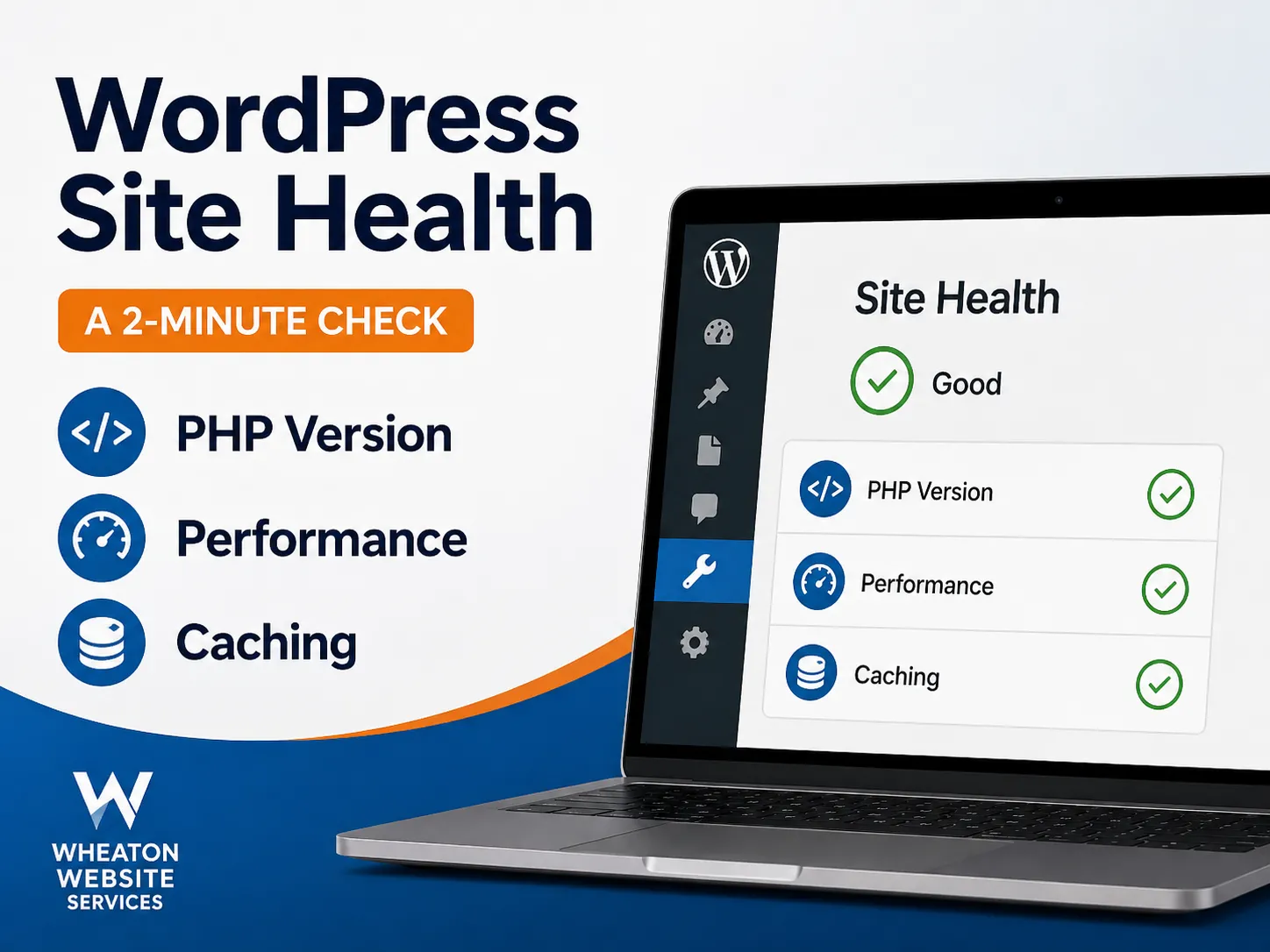
 If you followed our last post and confirmed your website has a working backup, good, you’ve already covered one of the two things most site owners never check until something breaks. This post covers the other one: a tab sitting quietly in your WordPress dashboard called Site Health.
Most people never click it. Nothing bad happens if you ignore it forever, until eventually something does. The good news is reading it takes about two minutes, and you don’t need to be technical to understand what it’s telling you.
Where to Find It
Log into your WordPress dashboard and look in the left-hand menu under Tools > Site Health. You’ll land on a page with two tabs: Status and Info.
The Status tab is the one that matters day-to-day. It gives you a plain summary at the top, something like “Should be improved” or “Good,” followed by a list of items WordPress has checked on your site.
Here’s the part that trips people up: not every item on that list deserves your attention. WordPress flags a lot of things, some genuinely important and some fairly minor. If you’ve ever opened this tab, seen a long list of warnings, and closed it out of overwhelm, you’re not alone. Below are the two categories worth your time.
The Warning That Matters Most: Your PHP Version
If you see anything mentioning PHP with a note that you’re running an outdated version, pay attention to this one. PHP is the programming language your WordPress site runs on, and hosting companies release newer versions regularly.
An outdated PHP version isn’t just a “nice to update” item. Older versions run slower, are more likely to have unpatched security holes, and can eventually stop being compatible with newer plugins and themes. It’s one of the more common gaps we see when reviewing sites, not because anyone did anything wrong, but because hosting environments don’t always update this automatically.
What to do about it depends on your host. Some hosting dashboards let you update your PHP version yourself with a couple of clicks, so it’s worth checking your control panel for a “PHP version” setting. Other hosts require a support ticket or a developer, especially if your site has older plugins that need compatibility checks first. Either way, now you know what to ask your host.
The Warnings Worth a Second Look: Performance Flags
The other category worth your attention shows up as performance-related notices, things like caching not being active, or a high number of “HTTP requests” needed to load your site. These sound technical, but the plain-English version is simple: your site is doing more work than it needs to every time someone visits, which slows things down. This shows up even on well-built sites, it’s usually a sign there’s room to speed things up, not that something is broken.
The fix is usually one of two things, sometimes both:
A caching plugin setting. Caching saves a “ready-to-go” version of your pages so your site doesn’t have to rebuild them from scratch for every visitor. If you already have a caching plugin installed, check that it’s actually turned on and configured, it’s surprisingly common for it to be installed but inactive.
Something on the hosting side. Server-level caching, or how your host handles content delivery, can also be a factor. If your caching plugin is active and configured and you’re still seeing these flags, ask your host directly what caching or CDN options they offer.
Either way, checking the Site Health tab gives you a concrete, specific thing to ask about, rather than a vague sense that the site feels slow. If you want to dig further into speed, check out what’s really slowing down your website beyond what Site Health flags.
What About the Info Tab?
The second tab, Info, is far less exciting, and that’s fine. It’s a technical readout of your site’s setup: server details, active theme, database info, and so on. You don’t need to read through it or understand it.
Its real purpose is for when you’re talking to a developer or hosting support. Instead of describing your setup over the phone, you or they can copy relevant sections straight from this tab.
The Takeaway
You don’t need to fix every single item the Site Health tab flags, and you don’t need to become a WordPress expert to make sense of it. Two minutes in this tab tells you whether your PHP version needs attention and whether your site has room to load faster, two things that genuinely affect your site’s security and performance.
Between this and confirming your backups are actually running, you’ve now covered two of the quieter but more important habits of keeping a website in good shape, without needing anyone to babysit it for you.
With Wheaton Website Services, we can help you stay on top of your site’s health and performance, from PHP updates to caching, without having to become a WordPress expert yourself. Are you ready to make sure your site is in good shape? Contact us today to learn how we can help.
Leave A Comment